
.png)
LI Test
LI Test
What You'll Learn
By the end of this tutorial, you'll be able to:
- Install the You.com community node in n8n
- Set up your API credentials securely
- Build a workflow that searches the web automatically
- Customize your searches with filters and options
Time needed: About 15 minutes
Prerequisites: An n8n instance (cloud or self-hosted)—see Part 1 if you need to set this up.
What Is You.com?
You.com is an AI-powered search and intelligence platform that provides real-time web data through a developer-friendly API. You.com APIs give you clean, structured JSON responses built for automation.
The You.com n8n node (@youdotcom-oss/n8n-nodes-youdotcom) currently exposes two operations:
- Search: Web and news results with filters for freshness, country, language, and full-page content extraction (Livecrawl)
- Get Contents: Extract clean Markdown, HTML, or metadata from any URL
Get your API key at you.com/platform.
Step 1: Get Your You.com API Key
Before we start in n8n, you need an API key from You.com.
How to Get Your Key:
- Go to you.com/platform
- Create an account (or sign in)
- Click "Create API Key"
- Enter a new key name
- Copy the key—you'll need it in the next step
Keep your API key secret. It's like a password. Don't share it publicly or commit it to code repositories.
Step 2: Install the You.com Node in n8n
- Open your n8n dashboard
- Click the gear icon (Settings) in the bottom left
- Select "Community Nodes"
- Click "Install"
- Type:
@youdotcom-oss/n8n-nodes-youdotcom - Check the box acknowledging the risks
- Click "Install"
- Wait for installation (usually 30 seconds)
If you're running n8n yourself, you can also install via command line:
Then restart your n8n instance.
Step 3: Create Your First Search Workflow
Let's build a simple workflow that searches for a topic.
Create a New Workflow:
- In n8n, click "Workflows" → "New Workflow"
- Give it a name like "My First Search"
Add a Manual Trigger:
- Click the "+" button on the canvas
- Search for "Manual Trigger"
- Add it to the canvas
This lets you run the workflow with a button click, which is useful for testing.
Add the You.com Node:
- Click the "+" button again
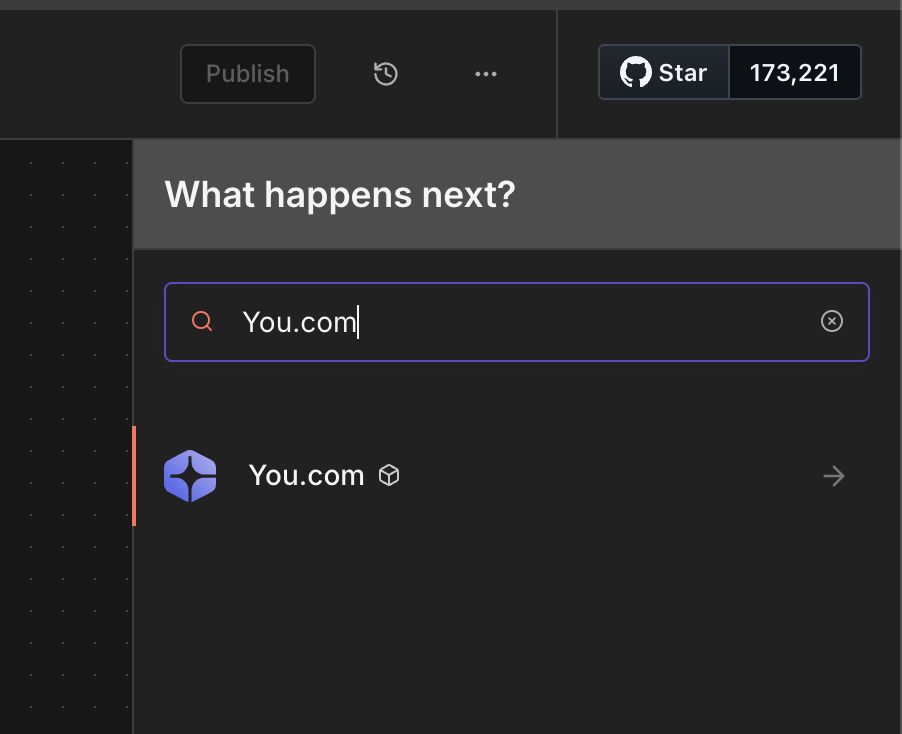
- Search for "You.com"
- Add the "You.com" node by clicking on the “Search the web and news” action in Node Details
Add Your API Credentials:
When you click on the You.com node, you'll see a "Credential to connect with" dropdown at the top.
- Click the dropdown and select "Create New Credential"
- Paste your API key into the field
- Click "Save"
n8n will automatically test the connection. If you see a green checkmark, you're good to go.

Step 4: Configure and Test Your Search
Now let's configure the search and run it.
Configure the Search:
- In the You.com node settings, find "Operation" — it should be "Search" (the default)
- In the "Query" field, type something like
latest artificial intelligence news
Test It:
- Click the "Execute step" button to test the node
- Watch as n8n executes the search and displays the results
Step 5: Understanding the Results
The You.com node returns structured JSON data with:
Web Results (results.web)
News Results (results.news)
Metadata
Step 6: Customize Your Search
Click "Add Option" in the You.com node to access additional filters:
Popular Options:
Livecrawl
Livecrawl fetches the full content of each search result page. This is useful when pairing search results with AI for summarization or analysis.
- Set Livecrawl to "All Results"
- Set Livecrawl Format to "Markdown"
- Each result will now include the complete page content
Example: Daily AI News Digest
Let's build something practical. Below is a workflow that runs every morning and collects fresh AI news.
The Workflow:
.jpg)
Configuration:
Schedule Trigger:
- Trigger at: 8:00 AM
- Days: Monday through Friday
**You.com Node:**
- Query:
artificial intelligence news breakthroughs - Count: 10
- Freshness: Past Day
Send Email Node:
- To: your email
- Subject: "Your Daily AI News Digest"
- Body: Use expressions to format the results
Troubleshooting
"Invalid API Key" Error
- Double check your API key is copied correctly
- Make sure there are no extra spaces
- Verify your You.com account is active
"Node Not Found"
- Ensure the community node is installed
- Try restarting n8n after installation
- Check Settings → Community Nodes
No Results Returned
- Try a broader search query
- Remove restrictive filters temporarily
- Check if your API quota is exhausted
What's Next?
Now that you can search the web from n8n, there's a lot you can build. In Part 3, we will explore creative use cases and show you how to combine web search with AI tools.
Ideas to try:
- Connect results to Google Sheets for archiving
- Send interesting results to Slack or Discord
- Use an AI node to summarize the search results
- Monitor specific topics for your business
LI Test
LI Test
Share Article:
Related resources.

10 Creative Ways to Use AI Web Search & Research in Your n8n Workflows
March 13, 2026
Blog

Give Your Discord Bot Real-Time Web Intelligence with OpenClaw and You.com
February 20, 2026
Blog

What is n8n? A Beginner's Guide to Workflow Automation
February 13, 2026
Blog

You.com Skill Is Now Live For OpenClaw—and It Took Hours, Not Weeks
February 3, 2026
Blog
All resources.
Browse our complete collection of tools, guides, and expert insights — helping your team turn AI into ROI.

What Is a SERP API? Architecture, Limitations, and Why the Market Is Shifting
April 30, 2026
Blog

New You.com Research API Controls: Scope the Web and Shape the Output
April 28, 2026
Blog

The You.com Web Search Eval Harness: Benchmark Any Web Search Provider Yourself
April 21, 2026
Blog

Extreme Single-Agent Inference Scaling for Agentic Search: Achieving SOTA on DeepSearchQA
April 20, 2026
Blog

The AI Governance Problem: Why Web Search APIs Are the Missing Layer
April 20, 2026
Blog

Guide: Why API Latency Alone Is a Misleading Metric
April 15, 2026
Guides

Governing AI Isn't Optional Anymore—and the Fix Starts at the Infrastructure Layer
April 14, 2026
News & Press
.png)
Best Web Search APIs for AI Agents: What to Test Before You Commit
April 13, 2026
Blog